
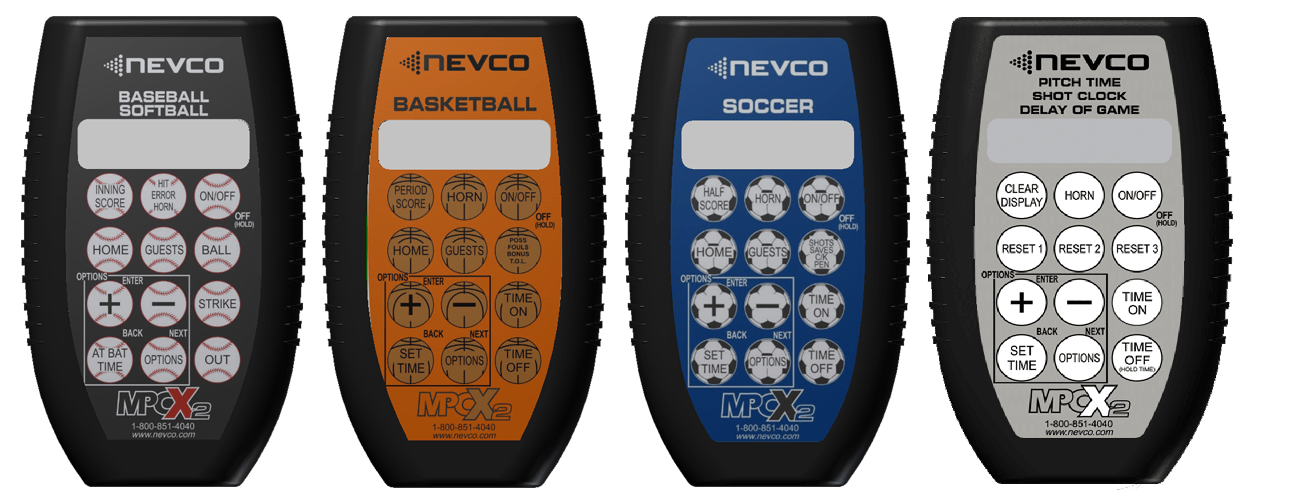
This article covers:
Adding a receiver to a controller
Problem: Controller not connecting to scoreboard
Problem: Controller losing connection intermittently
Problem: Controller data incorrect/misplaced on scoreboard
Problem: Controller keypad not responding
Problem: Horn blaring every time controller is turned on
Problem: Scoreboard keeps flickering between different data repeatedly
How to order parts or repairs for MPCX2
Legacy MPCX controller compatibility
Prior to moving forward please ensure:
- The board is receiving good, stable 120VAC power from your facility/breaker
- The controller has good, strong AA batteries
- There is no corrosion or foreign objects in the battery compartment
- There is not any cosmetic, physical damage to the controller's LCD screen
Adding a receiver to a controller
- Step 1: Locate Your Receiver ID
- On your scoreboard’s wireless receiver, locate the 6-digit RECEIVER ID printed next to the barcode.
- For indoor systems, the receiving radio is typically mounted on top of the scoreboard / on the back of the shot clock.
- For outdoor systems, the receiving radio is either located inside the face of the scoreboard or clock, or housed below the scoreboard in an off-white, fiberglass, weatherproof enclosure.
- On your scoreboard’s wireless receiver, locate the 6-digit RECEIVER ID printed next to the barcode.
- Step 2: Options Menu
- With the controller powered on, several different screens may appear depending on the state of the controller. If this is your first time turning on the MPCX2, you will most likely be prompted to enter a RECEIVER ID. If prompted, skip ahead to Step 4.
- If this is not your first time powering on the MPCX2, the screen will display SCANNING. This screen will remain visible for approximately 30–50 seconds while the controller attempts to establish a connection with the previously programmed data.
- Once the connection process is complete, the display will transition to the standard operating screen. This may include information such as Home and Guest Score, Inning/Period, Reset Times, and other sport-specific fields, depending on the controller profile in use.
- In the bottom-center of the 4×3 keypad, locate the button labeled OPTIONS. Press this button repeatedly until the screen displays ENTER CODE TO CHANGE SETTINGS. When this message appears, press the following buttons one at a time to advance to the next screen:
- For all sport-specific MPCX2 controllers, press the buttons in the following order:
- HOME → + → – → GUEST
- For all Shot Clock, DGT Pitch Timer controllers press the buttons in the following order:
- RESET 1 → + → – → RESET 2
- For all sport-specific MPCX2 controllers, press the buttons in the following order:
- With the controller powered on, several different screens may appear depending on the state of the controller. If this is your first time turning on the MPCX2, you will most likely be prompted to enter a RECEIVER ID. If prompted, skip ahead to Step 4.
- Step 3: Link Menu
- The screen will display LINK MENU (PRESS +). Press the + button to enter the Link Menu. Once inside the Link Menu, repeatedly press the OPTIONS button located in the bottom-center of the keypad until ADD REC ID appears on the screen. Press the + button again to enter this menu.
- Step 4: Enter the Receiver ID
- The screen will display a string of six zeros (000000), prompting you to manually enter the Receiver ID. The Receiver ID is printed on the receiving radio located at the scoreboard. To find your receiver ID, please refer to Step 1.
- To enter the Receiver ID, use the + and – buttons to change the underlined digit. To move to the next digit, press the OPTIONS button.
- Once the Receiver ID has been fully entered, press the button located in the bottom-left of the 4×3 keypad. You will then be prompted to reset the controller now or later. • If you are only entering one receiver, press the + button. The controller will reset automatically. • If you are adding multiple receivers, press the – button and repeat Steps 3–4 for each additional receiver
- After the MPCX2 resets, you may have to power off both the scoreboard and the controller for ~10 seconds, then reboot the scoreboard FIRST, then the controller. This will do a full system reset and allow the two to communicate
Changing the Scoreboard model
- Step 1: Options Menu
- Once the connection process is complete, the display will transition to the standard operating screen. This may include information such as Home and Guest Score, Inning/Period, Reset Times, and other sport-specific fields, depending on the controller profile in use.
- In the bottom-center of the 4×3 keypad, locate the button labeled OPTIONS. Press this button repeatedly until the screen displays ENTER CODE TO CHANGE SETTINGS. When this message appears, press the following buttons one at a time to advance to the next screen:
- For all sport-specific MPCX2 controllers, press the buttons in the following order:
- HOME → + → – → GUEST
- For all Shot Clock, DGT Pitch Timer controllers press the buttons in the following order:
- RESET 1 → + → – → RESET 2
- For all sport-specific MPCX2 controllers, press the buttons in the following order:
- The following screen will show LINK MENU (PRESS +). Do not press +. Instead, press OPTIONS and you will see Scoreboard Model. Each sport or type of controller has a different type of scoreboard type. Please cross reference your scoreboard model number and your MPCX2 sport type to determine the correct model to select in your controller using the + button.
- Once the required model is on your screen, simply reset the controller using the power button and when it powers on once again it should function opti
Problem: Controller not connecting to scoreboard
Causes and Solutions:
- Power to the board and/or wireless receiver is dead
- Step 1: Test power coming into the board and on the inside of the board. The power supply is labelled as an RSP-200-12; this converts 120V AC to 12V DC and will show a GREEN LED on the power supply when this conversion is being completed. If you have no light, you need a new power supply.
- Step 2: Check the receiver at the board for a RED status LED. This will either be shown through a small pinhole or when you open the receiver. If you see no light, exchange the power cable and try again. If you still have no light, contact Service for further troubleshooting or a new receiver.
- Programming for the MPCX2 controller is incorrect, corrupted, or missing
- Step 1: Turn the controller on and wait for it to display the main screen after scanning.
- Step 2: Press the OPTIONS button until you see Enter Code to Change Settings.
- Step 3: One at a time, in this order, press HOME, +, -, Guest. You may have another version of the MPCX2 that you have to press RESET 1, +, -, RESET 2 instead.
- Step 4: Press + when you see link menu, and then OPTIONS until you see View Receivers. Press +.
- Step 5: Make sure the receiver IDs you see within this list match the receiver at your board. If you see any LETTERS, contact Service. If you see no receiver ID numbers, you need to add the receiver to your controller. If you see a valid receiver ID, you likely have an issue outside of the controller itself.
- Wireless receiver at the board is not functional
- Step 1: You can fully verify the issue is with the receiver by swapping it with another receiver on-site. Should you have no other receivers, or you've already verified the issue is 100% the receiver, contact the Parts Dept.
- Wireless transmitter inside of the MPCX2 is not functional
- Step 1: Attempt to pair the receiver for that board with another controller. If the other controller is still not able to turn to board on, it is not a controller issue. If it does turn the board on, proceed to step 2.
- Step 2: Contact the Nevco Service Dept. for repairs or replacements
Problem: Controller losing connection intermittently
Causes and Solutions:
- Wireless receiver at the board is not functional
- Step 1: You can fully verify the issue is with the receiver by swapping it with another receiver on-site. Should you have no other receivers, or you've already verified the issue is 100% the receiver, contact the Parts Dept.
- Wireless transmitter inside of the MPCX2 is not functional
- Step 1: Attempt to pair the receiver for that board with another controller. If the other controller is still not able to turn to board on, it is not a controller issue. If it does turn the board on, proceed to step 2.
- Step 2: Contact the Nevco Service Dept. for repairs or replacements
- Line-of-Sight and/or Distance from board is beyond the scope of the equipment
- Step 1: Stand closer to the board and ensure there are no large barriers like brick walls or metal obstructions like chain link fences.
Problem: Controller data incorrect/misplaced on scoreboard
Causes and Solutions:
- Scoreboard model is set incorrectly in MPCX2 settings
- Step 1: Turn the controller on and wait for it to display the main screen after scanning.
- Step 2: Press the OPTIONS button until you see Enter Code to Change Settings.
- Step 3: One at a time, in this order, press HOME, +, -, Guest. You may have another version of the MPCX2 that you have to press RESET 1, +, -, RESET 2 instead.
- Step 4: Press Options until you see SCOREBOARD MODEL. Press plus until the model matches your board type. Please reference your MPCX2 controller manual at NEVCO.com for specifics.
Problem: Controller keypad not responding
Causes and Solutions:
If only certain buttons are not functional, there is likely physical damage to the internals of the keypad buttons and they must be repaired/replaced.
- The standard labor cost for non-warranty repairs is $175 plus the cost of any parts required to complete the necessary repairs.
- Be sure to indicate your preferred method of payment on the form, or if you would like to receive a quote prior to any repair work being completed.
NEVCO Service Department
301 East Harris Avenue
Greenville, IL 62246
Problem: Horn blaring every time controller is turned on
Causes and Solutions:
- Scoreboard model is set incorrectly in MPCX2 settings
- Step 1: Turn the controller on and wait for it to display the main screen after scanning.
- Step 2: Press the OPTIONS button until you see Enter Code to Change Settings.
- Step 3: One at a time, in this order, press HOME, +, -, Guest. You may have another version of the MPCX2 that you have to press RESET 1, +, -, RESET 2 instead.
- Step 4: Press Options until you see SCOREBOARD MODEL. Press plus until the model matches your board type. Please reference your MPCX2 controller manual at NEVCO.com for specifics.
Problem: Scoreboard keeps flickering between different data repeatedly
Causes and Solutions:
- Another controller has connected to the board and is feeding it data
- Find all other MPCX2 controllers currently in operation and turn them off to see if the issue persists. Ensure they do not have the same receiver ID in their internal link settings.
- The OCM/ILM module inside the controller is faulting
- Contact the Service Department for further steps.
How to order parts or repairs for MPCX2
To order parts, please either open a support ticket to request parts online, or call +1 (800) 851-4040 option 2 for the Parts Dept.
- The standard labor cost for non-warranty repairs is $175 plus the cost of any parts required to complete the necessary repairs.
- Be sure to indicate your preferred method of payment on the form, or if you would like to receive a quote prior to any repair work being completed.
NEVCO Service Department
301 East Harris Avenue
Greenville, IL 62246
Legacy MPCX controller compatibility
The previous generation MPCX controller operates on the 900Mhz bandwidth while the updated MPCX2 operates on 2.4GHz. This change means there is no way to be backwards compatible from the MPCX2 to the MPCX as they are completely unable to communicate. Should you have an MPCX and need to get a new part or are having issues with your current equipment, both the controller AND receiver must be replaced.
Furthermore, we do not repair these units whatsoever due to having completely halted manufacturing for the radios and it's constituent components.

Keywords (search terms)
Use these to match what customers type:
remote
x2
mpcx2
x2 controller not working
mpcx2 not working
scoreboard not responding
scoreboard not updating
controller not connecting
controller stuck on scanning
mpcx2 scanning issue
x2 remote not working
scoreboard won’t turn on
controller won’t connect to scoreboard
scoreboard wrong score
scoreboard display incorrect
cannot start timer scoreboard
scoreboard not changing score
controller out of range
weak signal scoreboard
replace controller batteries scoreboard
link controller to receiver
mpcx2 troubleshooting
nevco controller issues