
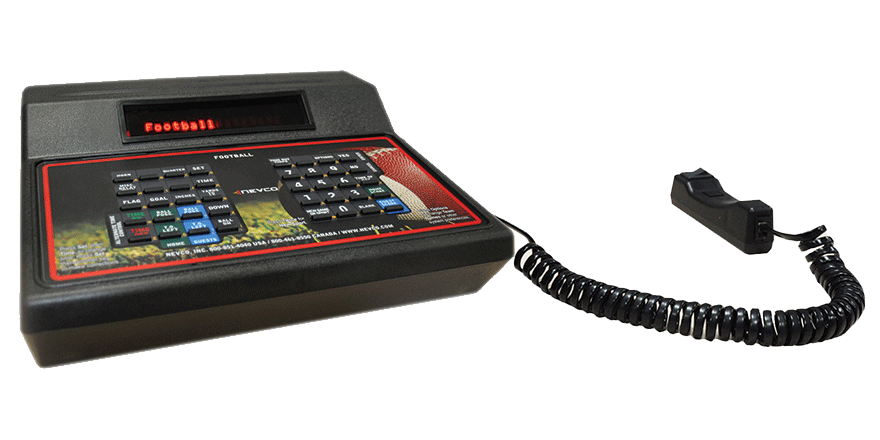
This article covers:
Connecting a new receiver to an existing controller
Controller not connecting to scoreboard
Controller losing connection intermittently
Controller is constantly resetting and beeping
Data on scoreboard is incorrect or misplaced
Controller keypad not responding
Horn blaring every time controller is turned on
Scoreboard flickers between different data repeatedly
Boards that aren't on/in the field/gym are illuminated or blaring the horn
How to order parts or repairs for the MPCW7
Prior to moving forward please ensure:
- The board is receiving good, stable 120VAC power from your facility/breaker
- The controller has known, good 9V 18W power adapter OR MPC battery add-on
- There is not any physical damage to the controller's display that will not allow you to troubleshoot further
Whenever you modify the internal settings of the controller, those changes won't be permanent until the profile is manually saved through the options menu.
Adjust settings carefully, and don't hesitate to contact us if you encounter any difficulties with navigating the unit.
Connecting a new receiver to an existing controller
- Step 1: Locate Your Receiver ID
- On your scoreboard’s wireless receiver, locate the 6-digit RECEIVER ID printed next to the barcode. Wireless receivers are either located on top of the board for indoor systems or in the face of the scoreboard or below the scoreboard in a weatherproof fiberglass box for all outdoor systems. Always ensure that the receiver and the board(s) are getting power from your facility prior to moving forward.
- Step 2: Enter the Correct Profile
- With the controller turned on, press the SCROLL PROFILES or NEW GAME/SPORT button until you see the desired profile you wish to manipulate.
- If you are creating a new profile, this would be a factory reset option.
- • 88-SOC – Soccer • 89-FBL – Football • 90-TRK – Track • 91-BSB – Baseball •
- 92-LAC – Lacrosse • 93-BKB – Basketball • 94-VBL – Volleyball • 95-WRS – Wrestling • 96-HOK – Hockey
- Press YES on your desired sport/profile.
- With the controller turned on, press the SCROLL PROFILES or NEW GAME/SPORT button until you see the desired profile you wish to manipulate.
- Step 3: Enter Wireless Menu on Controller
- Press OPTIONS continuously until you see WIRELESS, then press YES/ENTER.
- Inside the wireless menu, press OPTIONS again until you see ADD RECEIVER, then press YES/ENTER.
- Step 4: Add the Receiver
- When the screen displays Receiver# ←, enter the 6-digit Receiver ID.
- After the last digit is entered, the screen will clear and show an up arrow (↑). This indicates you are now naming the receiver. We recommend naming it with its 6-digit ID. Press SHIFT (Guest Score) (bottom-right button) to cycle typing modes: o ↑ = Capital letters o ↓ = Lowercase letters o # = Numbers only
- Type the 6-digit Receiver ID again, or another name of your preference, and press YES/ENTER.
- Step 5: Save the Receiver
- Press NO/CANCEL repeatedly until you return to the main sport screen. WARNING: Before saving, please clear any existing scores, time, or data you do not wish to carry into a new game.
- Press OPTIONS three times until you see PROFILES, then press YES/ENTER.
- Press OPTIONS until you see SAVE PROFILE, then press YES/ENTER.
- Enter a profile number (e.g., 01) to overwrite, or choose a new profile between 01–85.
- The profile name will appear, or it will be blank if you are creating a brand new profile. You may rename it or keep it as-is using the keypad. Press YES/ENTER to confirm.
- You will hear a long beep, but the screen will remain unchanged. You may press no to exit. You’ve now successfully paired your MPCW-7 controller with the receiver. Allow 5–15 seconds for full pairing to complete.
Note: These steps apply only to controllers of Revision 11 and newer
Problem: Controller not connecting to scoreboard
Causes and Solutions:
- You are in the incorrect profile for your board operation
- Press the SCROLL PROFILES or NEW GAME/SPORT button in the bottom middle of your controller keypad
- If you are between profile 88-96, indicated by the number on the left side of the screen, you are in a factory default/reset profile. This profile is ONLY for creating profiles or for hardwired coaxial connections
- Press the SCROLL PROFILES button repeatedly until you see PROFILE 1. Press yes. The controller will reset and the board should illuminate.
- If you do not have a profile outside of the 88-96 range, then you must set up a profile in order for this to function continuously.
- If you enter profile 1 and still have no lights illuminate on the board, go into the options menu, then into Wireless, and Link receiver, and insure that the scoreboard(s) that you need to connect to have a * to the right of their name.
- If they do not, press yes and wait 10 seconds to see if the board comes on.
- If they do, please refer to the Service Dept.
- You are not linked or have not added any receivers to this wireless controller
- Your coaxial signal cable is not plugged in (only for non-wireless systems)
- Internal components of the scoreboard are not getting power or signal
Problem: Controller losing connection intermittently
Causes and Solutions:
- Line-of-sight or hard/metallic obstructions in the way of the signal path to the scoreboard
- Keep in mind all signals are dependent upon a clear Line Of Sight and will diminish proportionately as LOS degrades.
- Barriers such as chain-link fences, concrete brick walls, dugouts, stadium stands, and bleachers can degrade LOS.
- The MPCW6 and MPCW7 wireless equipment operates in the 900MHz spectrum, is FCC certified as transmitter ID: PLHZW4 and Industry Canada IC: 4006A-ZW4 and complies with the following:
- Part 15.247 rules govern operation of the either FHSS or DSSS radio operation. o FHSS radios are required under these rule to limit RF transmit power (measured at the antenna) to 1W
- Further, the radio must hop over a minimum of 50 channels, with a maximum dwell time of 400ms, 20db bandwidth at 500 kHz over a 20 second period
- Local interference
- Although the chance is much lower when referencing 900MHz, you may still see general disturbance in the area from local cell towers or other large radio installations. Even some still existing traffic light systems depend on the 900MHz spectrum.
- Should you find that all tabletop controllers you operate with degrade in the same area of your facility, the only two solutions for this issue would be to hardwire the board via the coaxial outputs in the back of the controller, or to switch the to MPCX2 controller.
- Although the chance is much lower when referencing 900MHz, you may still see general disturbance in the area from local cell towers or other large radio installations. Even some still existing traffic light systems depend on the 900MHz spectrum.
- Distance from receiver
- The MPCW-7 has a soft confidence range of ~1500', with it's optimal playing range being under 500'.
- Receiver is failing
- This would require immediate access to the board via a ladder or lift, and to call our Service Dept. to assist in the troubleshooting over the phone.
Problem: Controller is constantly resetting and beeping
Causes and Solutions:
- Your controller is Revision 030 or older and the Main Card is overloaded
- Check the controller revision by turning off the controller, then back on. It will display NEVCO MPC-7 RXXX. The number shown in place of the x's is your revision of firmware.
- This controller must be sent into us for repair.
- There is a power failure internal or external to the controller
- For power failure externally, please try another 9V 18W power adapter and examine the power port on the back of the controller for foreign objects or damage. Furthermore, it is optimal to utilize a different outlet to rule out bad facility power
- For internal power failure, disconnect the controller from power and send it into us immediately to stop any potential further damage.
Problem: Data on scoreboard is incorrect or misplaced
Causes and Solutions:
- Incorrect Sport selected for board type
- If you go into your dedicated profile, but the screen that pops up after the controller resets is for another sport, it is due to the fact that the profile that was created had been saved under the INCORRECT sport type.
- Pressing the SCROLL PROFILES button repeatedly, you will see profiles 88-96 all reference a "FACTORY RESET". These profiles are not for daily utilization, but instead the creation of new profiles.
- Scroll to the profile that features the sport you need to play by repeatedly pressing the Scroll Profiles button.
- • 88-SOC – Soccer • 89-FBL – Football • 90-TRK – Track • 91-BSB – Baseball •
- 92-LAC – Lacrosse • 93-BKB – Basketball • 94-VBL – Volleyball • 95-WRS – Wrestling • 96-HOK – Hockey
- You may then link the receivers for your boards using the OPTIONS button -> Wireless -> Link Receiver.
- Pressing YES on any of the receivers programmed inside the controller will put a "*" to the right of it. That means the receiver is linked and attempting to establish a connection. With 10 seconds, your board should illuminate.
- If your board does not illuminate, try to link to a different receiver.
- If your board does not illuminate, try to link to a different receiver.
- Pressing YES on any of the receivers programmed inside the controller will put a "*" to the right of it. That means the receiver is linked and attempting to establish a connection. With 10 seconds, your board should illuminate.
- You must save these changes to your controller before turning the controller off or changing to a different profile.
- Simply press NO until you see the main screen -> Options button -> Profiles -> Yes -> Options -> Save profiles -> Yes -> Type the number of the profile you want to replace. This can only be number 1-85.
- If you go into your dedicated profile, but the screen that pops up after the controller resets is for another sport, it is due to the fact that the profile that was created had been saved under the INCORRECT sport type.
- Incorrect Model selected for board type
- Depending on the sport you are playing with, you will have to select a model to match the description of your board. This setting is always set up when purchasing a controller with a scoreboard, but if you have purchased an individual controller, this is likely the last step to complete your installation process.
- For example: if you have a Baseball/Softball scoreboard from 2025 that tracks each of the innings individually, the model you need to be set to is X6XX Inning By Inning. You can find all of the different model type requirements, per board, using your supplied controller user manual. You may also find each manual on our website at NEVCO.COM.
- Depending on the sport you are playing with, you will have to select a model to match the description of your board. This setting is always set up when purchasing a controller with a scoreboard, but if you have purchased an individual controller, this is likely the last step to complete your installation process.
- Internal component failure
- If none of the above steps have solved the issue, please contact the Nevco Service Dept. to troubleshoot internal failures.
Problem: Controller keypad not responding
Causes and Solutions:
- (Only when trying to access the OPTIONS menu) Time is running
- Turn time off to access the options menu. Options button is disabled if time is running.
- Internal components potentially damaged or unplugged
- Contact service to see if this unit needs to be sent in for repair.
Problem: Horn blaring every time controller is turned on
Causes and Solutions:
- Incorrect Sport selected for board type
- If you go into a your dedicated profile but the screen that pops up after the controller resets is for another sport, it is due to the fact that the profile that was created had been saved under the INCORRECT sport type.
- Pressing the SCROLL PROFILES button repeatedly, you will see profiles 88-96 all reference a "FACTORY RESET". These profiles are not for daily utilization, but instead the creation of new profiles.
- Scroll to the profile that features the sport you need to play by repeatedly pressing the Scroll Profiles button.
- • 88-SOC – Soccer • 89-FBL – Football • 90-TRK – Track • 91-BSB – Baseball •
- 92-LAC – Lacrosse • 93-BKB – Basketball • 94-VBL – Volleyball • 95-WRS – Wrestling • 96-HOK – Hockey
- You may then link the receivers for your boards using the OPTIONS button -> Wireless -> Link Receiver.
- Pressing YES on any of the receivers programmed inside the controller will put a "*" to the right of it. That means the receiver is linked and attempting to establish a connection. With 10 seconds, your board should illuminate.
- If your board does not illuminate, try to link to a different receiver.
- If your board does not illuminate, try to link to a different receiver.
- Pressing YES on any of the receivers programmed inside the controller will put a "*" to the right of it. That means the receiver is linked and attempting to establish a connection. With 10 seconds, your board should illuminate.
- You must save these changes to your controller before turning the controller off or changing to a different profile.
- Simply press NO until you see the main screen -> Options button -> Profiles -> Yes -> Options -> Save profiles -> Yes -> Type the number of the profile you want to replace. This can only be number 1-85.
- If you go into a your dedicated profile but the screen that pops up after the controller resets is for another sport, it is due to the fact that the profile that was created had been saved under the INCORRECT sport type.
- Incorrect Model selected for board type
- Depending on the sport you are playing with, you will have to select a model to match the description of your board. This setting is always set up when purchasing a controller with a scoreboard, but if you have purchased an individual controller, this is likely the last step to complete your installation process.
- For example: if you have a Baseball/Softball scoreboard from 2025 that tracks each of the innings individually, the model you need to be set to is X6XX Inning By Inning. You can find all of the different model type requirements, per board, using your supplied controller user manual. You may also find each manual on our website at NEVCO.COM.
- Depending on the sport you are playing with, you will have to select a model to match the description of your board. This setting is always set up when purchasing a controller with a scoreboard, but if you have purchased an individual controller, this is likely the last step to complete your installation process.
Problem: Scoreboard flickers between different data repeatedly
Causes and Solutions:
- Multiple controllers connected to the same board at the same time
- Turn off all other controllers in the area to see if the issue persists. This could be from an entirely different field or gym.
- If you turn a controller off, check if the issue persists, and it does, repeat on a different controller.
- If you turn a controller off, check if the issue persists, and it does not, then you need to enter the wireless menu on the controller to unlink that receiver and save the change to make sure the issue does not arise again.
- It is possible that whenever programming or installing your system, a receiver from another facility or gym was programmed into the profile you are currently utilizing.
- In order to remedy this, press the OPTIONS button until you see WIRELESS. Press YES.
- Press YES immediately after on LINK receiver
- Press the options button to cycle through all of the receivers currently programmed to operate with this controller.
- If you see a controller name that does not look like it correlates to this gym, press yes on it to take away the " * " sign, wait to see if any of the boards you need turn off, and then move forward if not.
- If you are unable to tell what receivers go to what boards, simply find the first receiver name with a " * " next to it and deactivate by pressing yes. If a component of the gym you are operating on turns off, re-enable the receiver and move to the next one until you have ensured all receivers outside of this gym/facility/field are deactivated
- After completing the above steps you MUST save these changes to the profile.
- SET ALL DATA SUCH AS HOME SCORE, GUEST SCORE, TIME, ETC. TO ZERO BEFORE CONTINUING-
- Press no until you see the name of the sport.
- Press Options until you see PROFILES; press yes.
- Press Options until you see SAVE PROFILES; press yes continuously until you hear a long beep.
- SET ALL DATA SUCH AS HOME SCORE, GUEST SCORE, TIME, ETC. TO ZERO BEFORE CONTINUING-
- Reset the controller and ensure these changes have saved.
- It is possible that whenever programming or installing your system, a receiver from another facility or gym was programmed into the profile you are currently utilizing.
- Turn off all other controllers in the area to see if the issue persists. This could be from an entirely different field or gym.
Problem: Boards that aren't on/in the field/gym are illuminated or blaring the horn
Causes and Solutions:
- Incorrect Profile selected
- Press the SCROLL PROFILES or NEW GAME/SPORT button in the bottom middle of your controller keypad
- If you are between profile 88-96, indicated by the number on the left side of the screen, you are in a factory default/reset profile. This profile is ONLY for creating profiles or for hardwired coaxial connections
- Press the SCROLL PROFILES button repeatedly until you see PROFILE 1. Press yes. The controller will reset and the board should illuminate.
- If you do not have a profile outside of the 88-96 range, then you must set up a profile in order for this to function continuously.
- If you enter profile 1 and still have no lights illuminate on the board, go into the options menu, then into Wireless, and Link receiver, and insure that the scoreboard(s) that you need to connect to have a * to the right of their name.
- If they do not, press yes and wait 10 seconds to see if the board comes on.
- If they do, please refer to the Service Dept.
- Receivers outside of the gym linked to profile
- It is possible that whenever programming or installing your system, a receiver from another facility or gym was programmed into the profile you are currently utilizing.
- In order to remedy this, press the OPTIONS button until you see WIRELESS. Press YES.
- Press YES immediately after on LINK receiver
- Press the options button to cycle through all of the receivers currently programmed to operate with this controller.
- If you see a controller name that does not look like it correlates to this gym, press yes on it to take away the " * " sign, wait to see if any of the boards you need turn off, and then move forward if not.
- If you are unable to tell what receivers go to what boards, simply find the first receiver name with a " * " next to it and deactivate by pressing yes. If a component of the gym you are operating on turns off, re-enable the receiver and move to the next one until you have ensured all receivers outside of this gym/facility/field are deactivated.
- After completing the above steps you MUST save these changes to the profile.
- SET ALL DATA SUCH AS HOME SCORE, GUEST SCORE, TIME, ETC. TO ZERO BEFORE CONTINUING-
- Press no until you see the name of the sport.
- Press Options until you see PROFILES; press yes.
- Press Options until you see SAVE PROFILES; press yes continuously until you hear a long beep.
- SET ALL DATA SUCH AS HOME SCORE, GUEST SCORE, TIME, ETC. TO ZERO BEFORE CONTINUING-
- Reset the controller and ensure these changes have saved.
- It is possible that whenever programming or installing your system, a receiver from another facility or gym was programmed into the profile you are currently utilizing.
How to order parts or repairs for the MPCW7
To order parts please call 8008514040 option 2, or enter a support ticket on our website.
- The standard labor cost for non-warranty repairs is $175 plus the cost of any parts required to complete the necessary repairs.
- Be sure to indicate your preferred method of payment on the form, or if you would like to receive a quote prior to any repair work being completed.
NEVCO Service Department
301 East Harris Avenue
Greenville, IL 62246

Keywords (Search Terms)
w7 controller not working
mpcw7 not working
mpcw7 controller not responding
w7 scoreboard not responding
nevco w7 troubleshooting
mpcw7 not connecting
scoreboard not updating w7
Black Box controller no control
mpcw7 wireless issue
w7 controller profile issue
scoreboard wrong data w7
mpcw7/Black Box time not working
w7 controller setup issue
mpcw7 receiver not linked
w7 scoreboard connection problem
Black Tabletop Controller not working
black box not working
score clock not working
score box not working
score panel not working
score clock not working
time clock not working
console not working