
DHCP Requirement
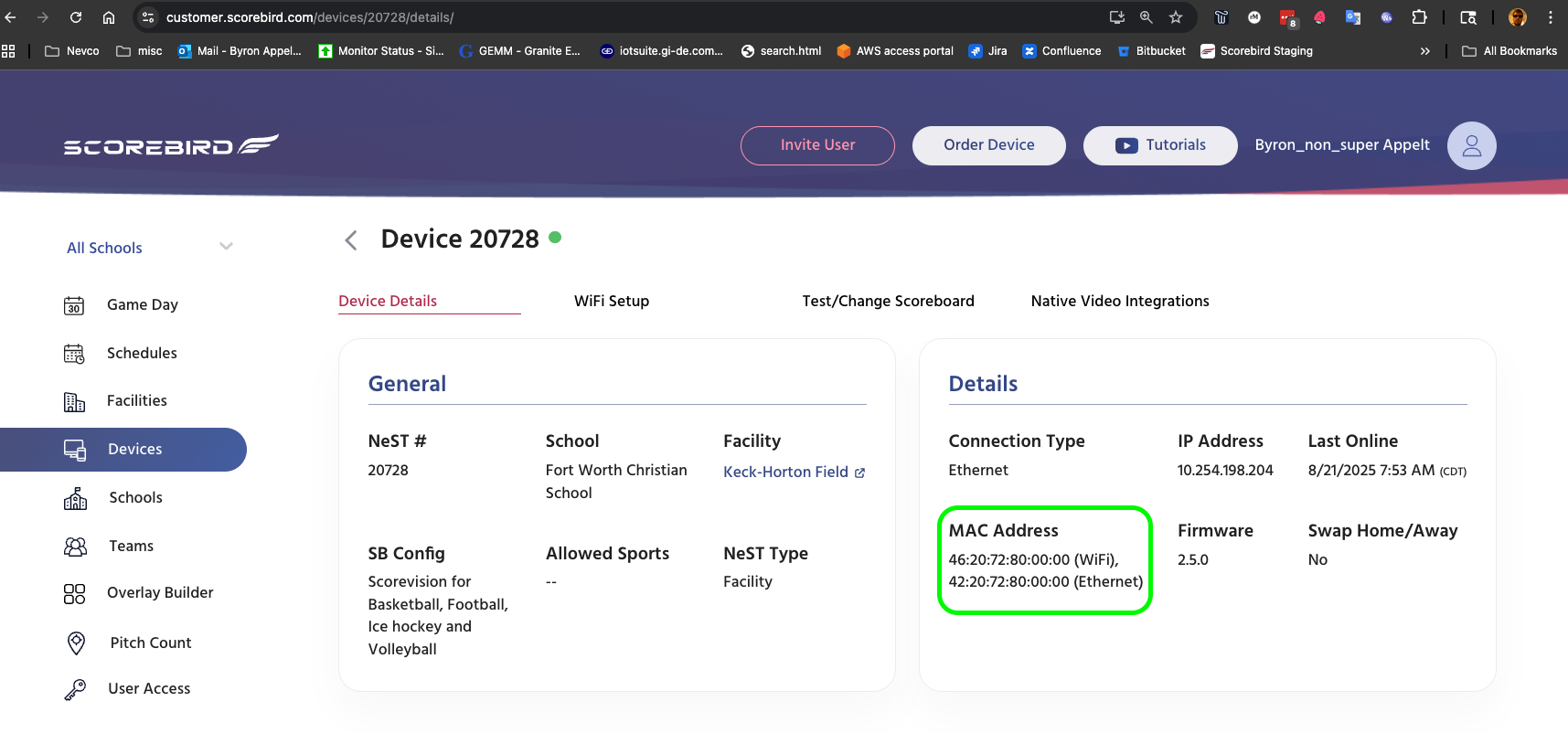
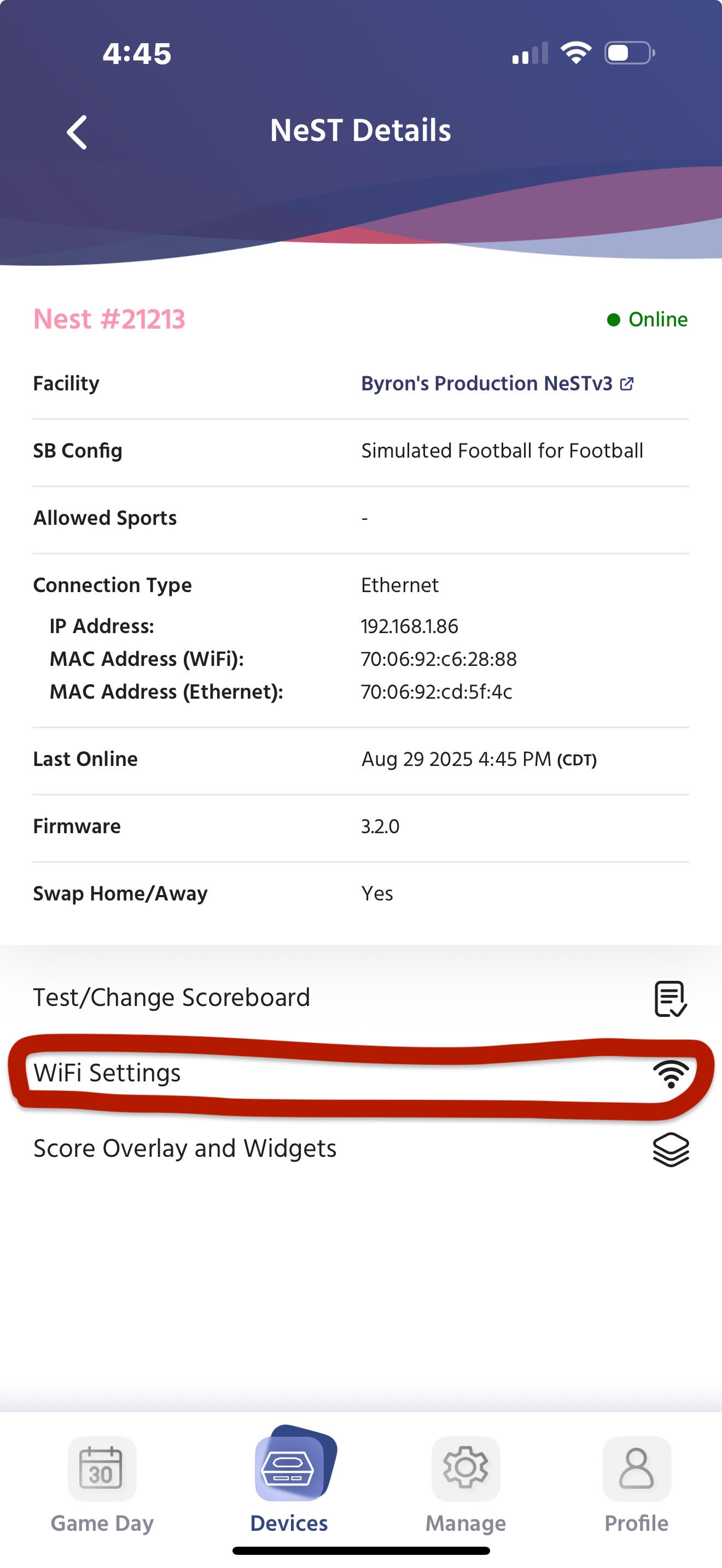
The NeST must use DHCP to obtain an IP address. If you require the NeST to have a static IP, configure your DHCP server to have a static DHCP lease or MAC reservation. The MAC addresses of your NeST are viewable in the customer portal under Devices:
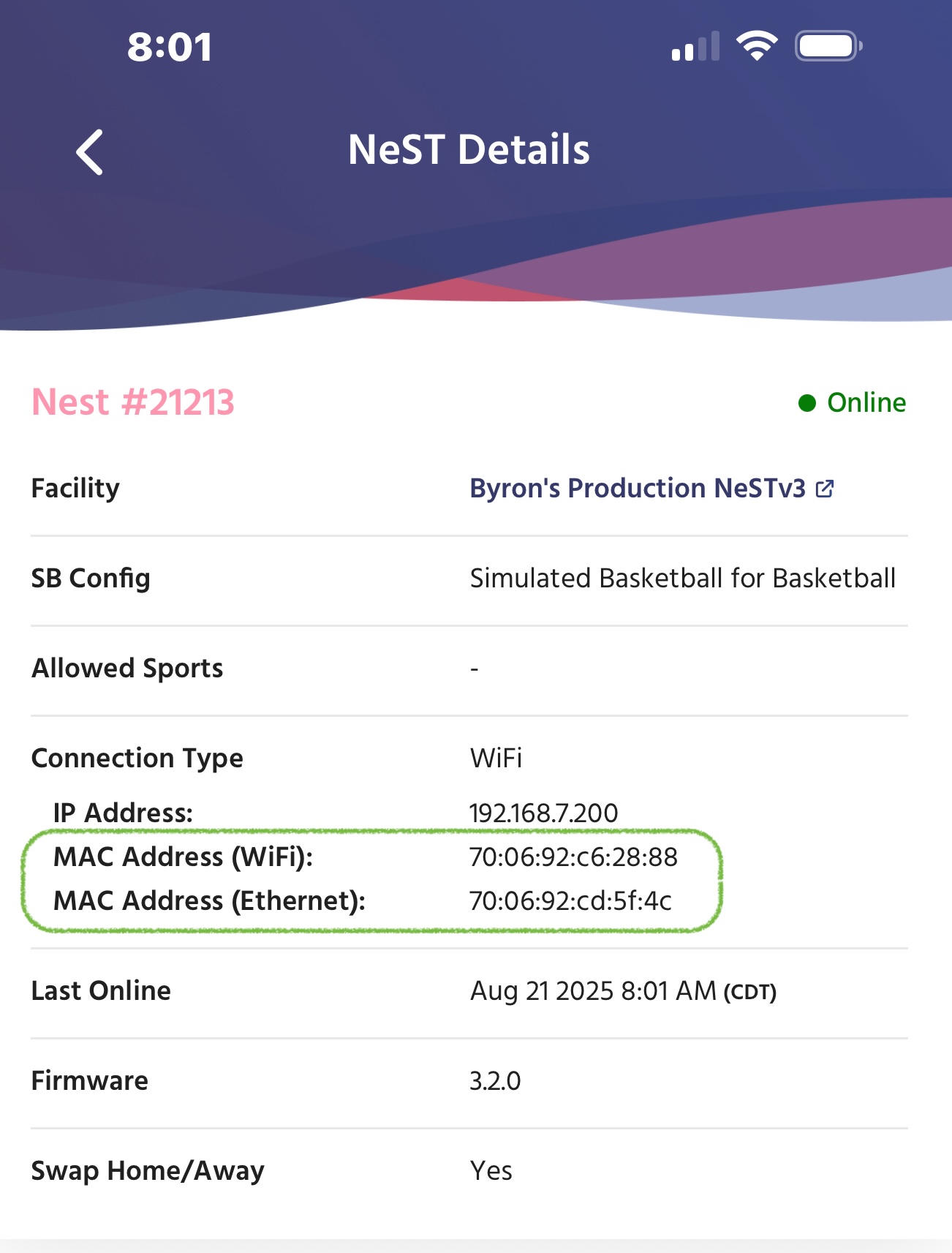
as well as in the Scorebird Admin App under Devices → Nest Details:
Firewall / Port access
The NeST requires outbound-only access to the following ports:
53/UDP – DNS
80/TCP – HTTP (software updates)
443/TCP – HTTPS (all encrypted communication and updates)
Domain Whitelisting
If your environment restricts access by hostname, whitelist the following:
Core device services:
iotcore.intdesign.biz
a2u9gya9azl3fe.iot.us-east-1.amazonaws.com
System updates:
ports.ubuntu.com
apt.armbian.com
apt.fury.io
IP Whitelisting
We do not recommend IP-based whitelisting. The NeST services are hosted on cloud providers (including AWS), where IP addresses may change without notice. Always use hostname/domain-based whitelisting to ensure reliable connectivity.
How to Connect via Ethernet
To connect the NeST via Ethernet, simply plug an ethernet cable into the NeST’s ethernet port. If the NeST is already connected via Cellular or Wi-Fi, it should switch over to ethernet within 60s.
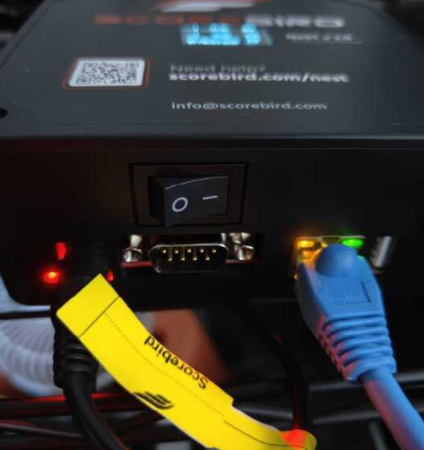 If the NeST cannot get online via ethernet, check the LEDs on the ethernet jack. They should be illuminated and may occasionally flash. If they are dark, make sure that that you are using a good ethernet cable, it is plugged into the NeST securely and the other end is plugged into a good port with a good connection to your router.
If the LEDs on the ethernet port are lighting up but your NeST still cannot get online, the problem is likely related to your network.
How to Connect via Wi-Fi
You NeST must first be powered on and connected via Cellular or Ethernet to receive an update to it’s configuration to move to Wi-Fi. One it is online, you can use the admin app to configure it for Wi-Fi.
Open the Admin App
Switch to the Devices Tab
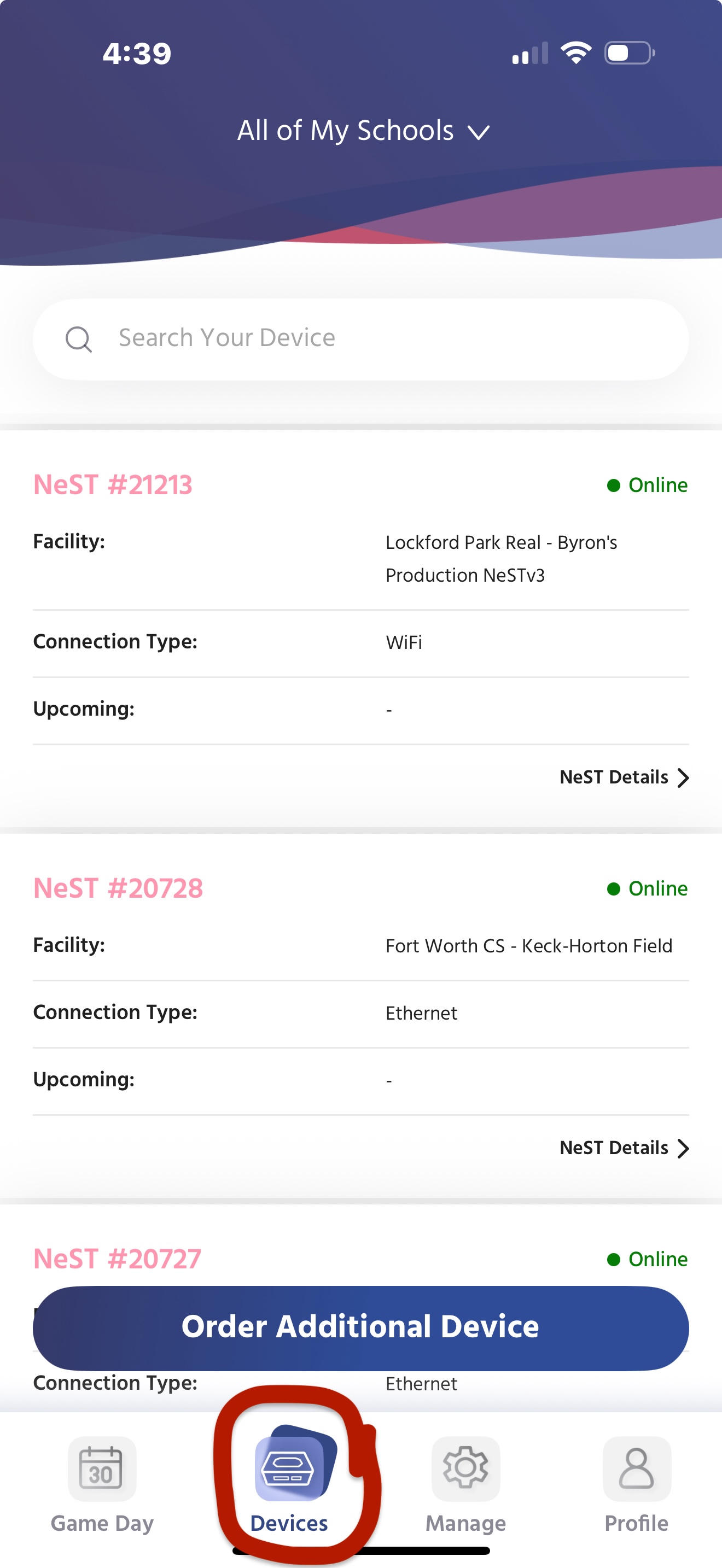
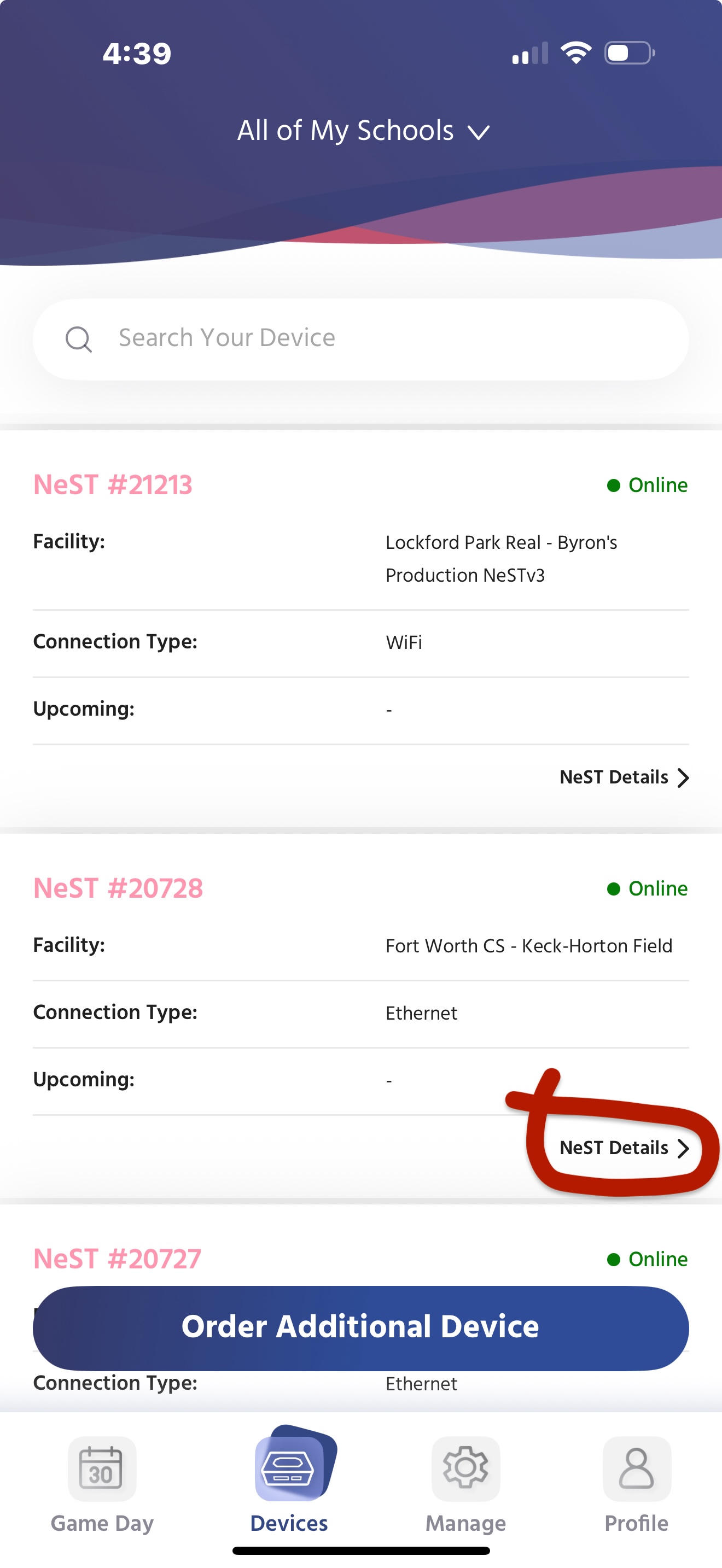
Find the correct device and click on “NeST Details”
Click on Wi-Fi Settings
- Select the network security type, enter the required information and click Save.
- Your NeST should receive your WiFi configuration and connect to your Wi-Fi network in 1-2 minutes.
Although your NeST will connect to your Wi-Fi network as soon as it receives the configuration, it will continue to use ethernet when available, so you will not see the display change to Wi-Fi until you unplug the ethernet cable.
If your NeST fails to connect and come online via Wi-Fi, double check your credentials and make sure that the NeST is located where there is a good Wi-Fi signal. If your NeST still does not come online, there may be a problem related to your network configuration.
How to Connect via Cellular
The NeST has a build in cellular modem, but this should only be used as a backup since cellular data is extremely unreliable in sporting venues.
The cellular connection should just work unless the NeST is plugged into Ethernet or has been configured to use Wi-Fi.
If the NeST is unable to get a good cellular connection, you can try relocating the NeST to a location with better cellular coverage.
Keywords (Search Terms)
scorebird nest not working
scorebird nest not connecting
scorebird nest no data
scorebird nest activation issue
scorebird nest not sending data
score bird nest not working
scorebird nest network issue
scorebird nest setup problem
scorebird nest scoreboard not updating
score bird nest issue
scorebird
score bird
nest
connecting scorebird nest